
Find the right moment
A filename tells you very little. You remember a summer, a city or a trip, then open folders to find the picture.

PHOTOS & VIDEOS · OPEN SOURCE & SELF-HOSTED
Turn your photo folders into a collection you can browse by date and place. Build albums and share your selections from your own server.
YOUR PHOTOS DESERVE MORE THAN A FILE LIST
Your NAS holds years of pictures. Yet finding a memory, putting together a selection and sharing it still means browsing directories by hand.
A filename tells you very little. You remember a summer, a city or a trip, then open folders to find the picture.
Pictures from an event are spread across several folders. Making an album becomes another round of sorting and copying.
You want to send the right photos and choose who can access them, while keeping your photo library on your own server.
Lightcella turns those folders into a photo library you can browse by date and location. Your albums bring pictures together; your files stay where they belong.

01 / CONNECT
Years of photos, already in folders. Lightcella indexes them where they are, so you can keep the structure you have built.
Designed for NAS devices and modest hardware.
Install with Docker or a pre-built binary.
Choose a directory, assign its owner and start indexing. Then browse its folders from the application.
Import from your NAS or browser into a library your account can upload to.
Track progress, resume transfers and detect files already uploaded while thumbnails are being prepared.
INSTALL ON YOUR SERVER
Install Lightcella on your NAS or server, then add your library’s folder path in the interface.
Open source under AGPL-3.0.
NAS devices and modest servers, including ARM.
docker run -d \
  --name lightcella \
  -p 8080:8080 \
  -v /path/to/photos:/photos:ro \
  -v lightcella-data:/app/data \
  ghcr.io/lightcella/lightcella:latest
Replace /path/to/photos with your photo folder. This mount gives read-only access to your photos; the lightcella-data volume keeps the application data persistent.
Then open port 8080 on your server in a browser and set your library path to /photos.
02 / FIND
Jump back through the months. Open a photo in the viewer, move to the next, then return to your selection.
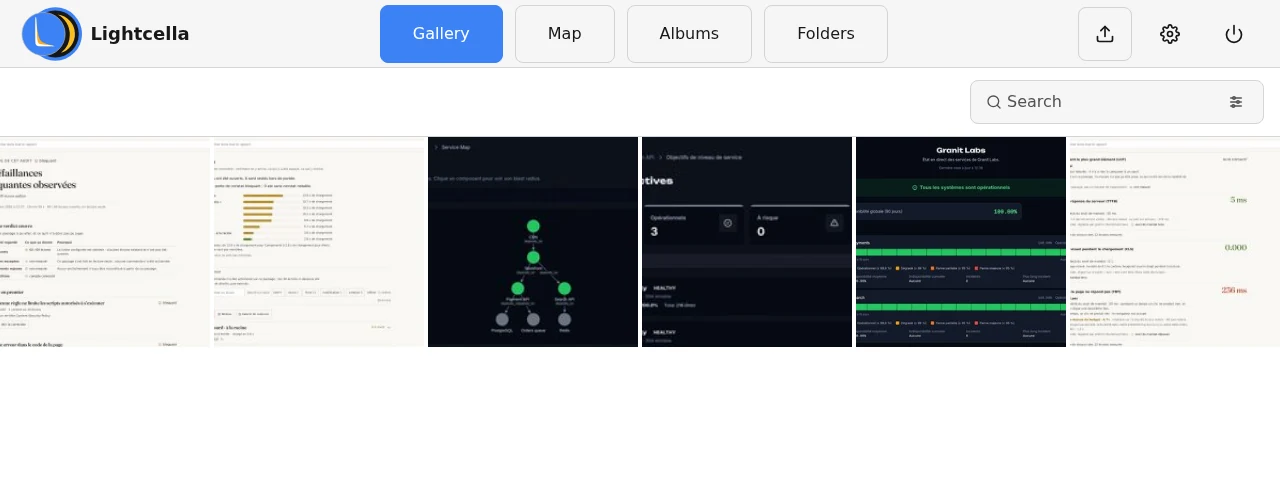
Combine text search with a date range, folder or album. You can also filter for images with missing or unconfirmed locations.
Sort by capture date, date added or filename. Navigate the viewer and filmstrip with your keyboard.

ANOTHER WAY IN: THE MAP
Sometimes you remember the town before you remember when you went.
03 / ORGANISE
Add a title and keywords to help find your photos. When a whole series has the wrong date, correct the selection in one operation.
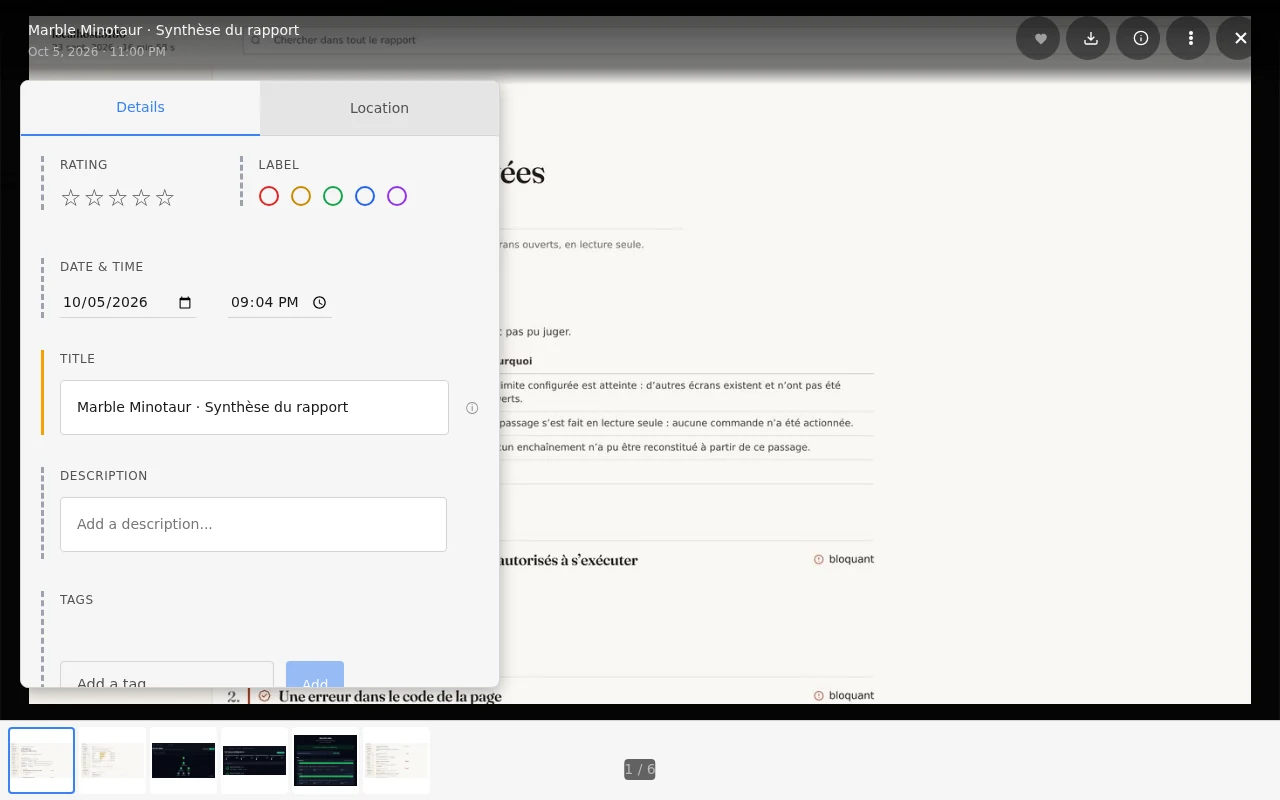
FOR PHOTOS FROM YOUR CAMERA
Shooting RAW and JPEG? Lightcella can group the variants into a single photo. It usually displays the JPEG while keeping the other files indexed.
Camera, aperture, shutter speed, ISO and focal length: inspect the EXIF information and the sources it comes from.
When GPS data reveals a time zone mismatch, you can correct it in the viewer. Your photos return to their place in the timeline.
Configure XMP sidecar files or embedded metadata for compatible formats. You can also preserve the file’s modification time when writing changes.
SORT YOUR COLLECTION
Review groups, choose your photos and dismiss the groups that no longer need attention.
Move a photo out of the main gallery without deleting it. Unarchive it whenever you need to.
Restore an image before it is permanently deleted. Configure automatic cleanup to suit your needs.

YOUR SELECTIONS
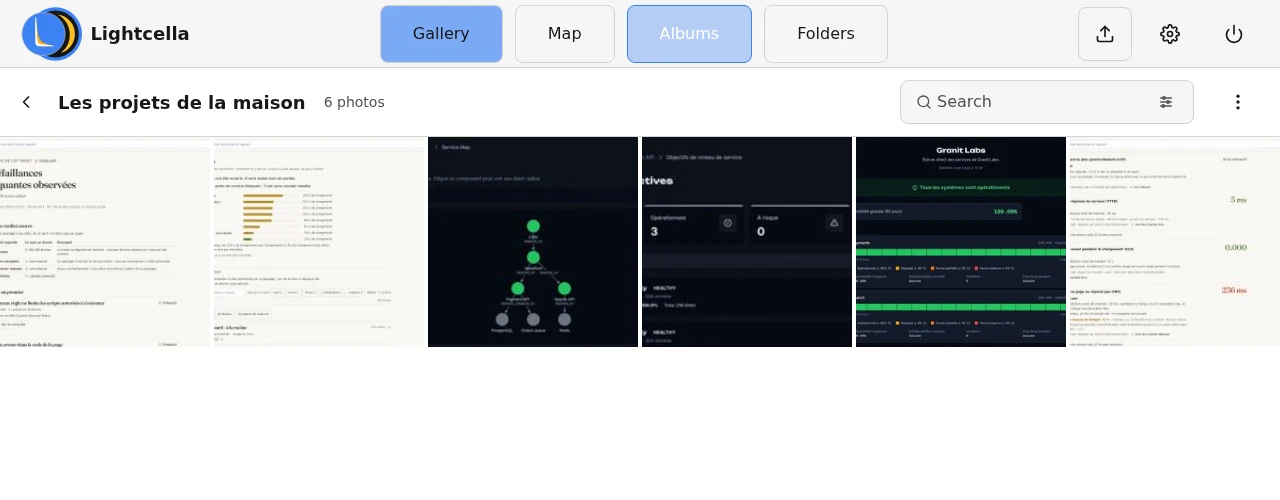
Bring your images together, name the album and arrange their order. A photo can belong to several albums while its file stays in the original folder, with no extra copy.
Six screenshots from Granit Golem and Marble Minotaur, imported into a working Lightcella demo instance.
All six files remain in their source folder. The album brings the selection together.
04 / SHARE
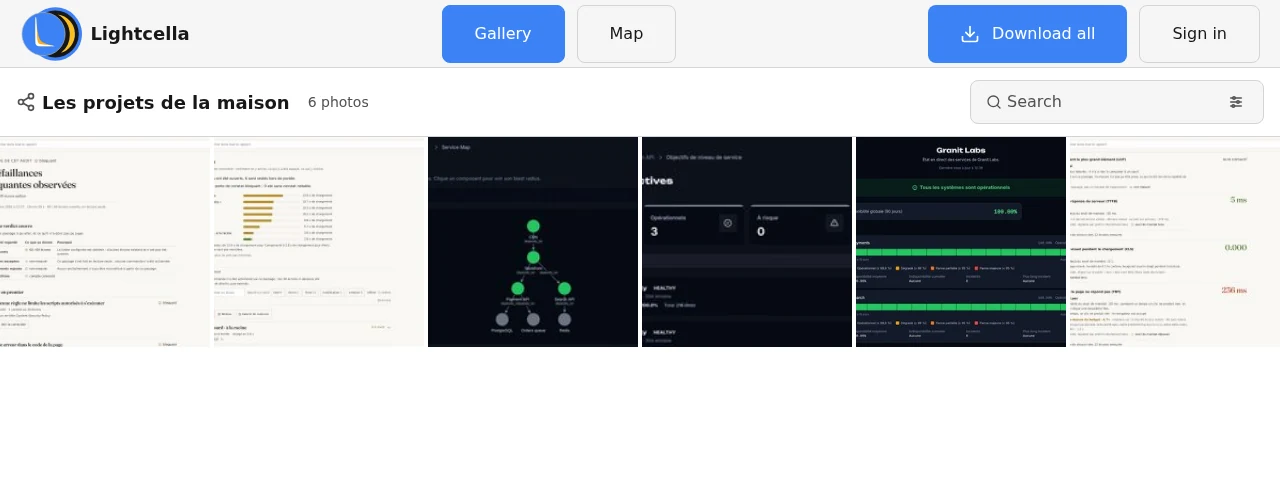
WHAT YOUR GUESTS SEE
FROM PHONE TO CAMERA
Browse previews in your browser, then download the files or selection you need.
Download a selection.Track file preparation before downloading.
AFTER THE FIRST IMPORT
Choose how new images arrive and where they are stored.
Configure folder monitoring and periodic rescans. Direct change detection depends on your storage’s file system.
Choose a library, subfolder and naming pattern, such as year and month. These rules apply to new imports; your existing folder structure stays in place.
Send files to the authenticated endpoint from compatible software. It gives you another way to add images to your library.
EXPLORE THE DETAILS
Choose a light or dark theme, your starting view and map options. Access your library from your phone’s browser too.
Find the full details of the features, permissions and settings available.
36 detailed features in 11 groups.
Add folder paths, browse subfolders and run a new scan. An administrator can transfer a library to another owner.
Index files already on your server or upload new images to a library your account can access.
Track transfers and thumbnail preparation. Resume uploads and identify files already sent using their fingerprints.
Browse the grid, jump between months and open the viewer with its photo strip. Keyboard navigation is available too.
Combine text search with a date range, folder or album. Find images without GPS coordinates or with a location still awaiting confirmation.
Sort by capture date, import date or filename, in ascending or descending order.
The map groups images by area. Search for a location by name and choose your map background in settings.
Place a photo on the map or update GPS coordinates for several images together.
GPS interpolation suggests a location using photos taken around the same time. Adjust the time window, filter by camera and confirm the proposed coordinates.
Edit titles, descriptions and keywords. Add a rating from 0 to 5 and a colour label.
Edit a selection in one batch, correct dates and time zones, or revert fields to their source values.
Configure XMP sidecar files or write metadata into supported image formats.
Review groups of similar photos and duplicates. Dismiss a group without deleting its images, then restore it for review if needed.
Remove an image from the main gallery by archiving it. Unarchive it to bring it back.
Recover trashed photos before they are permanently deleted. Configure automatic trash cleanup in settings.
Create an album with a name and description. Add, remove and reorder photos as the project evolves.
Albums reference your photos. They do not duplicate files or change their original folders.
Album access and permissions on its photos are separate. An album editor does not automatically receive every permission on the files.
Accounts have administrator, member or viewer roles. Viewing, contribution and editing permissions apply separately to libraries and albums.
Protect a public link with a password, set its expiry date and revoke access when it is no longer needed.
Allow uploads through a public link with an upload allowance and maximum file size. Contributions follow your configured permissions and limits.
Lightcella prepares photo previews. Supported RAW formats include Sony ARW, Canon CR2/CR3, Nikon NEF and Adobe DNG; decoding depends on your installation.
Video processing uses FFmpeg to prepare media and their previews.
Download your files and follow the preparation of your selection.
Choose the appearance that suits you when browsing and organising your photos.
Set the initial view, map options and other application preferences.
Manage accounts, libraries and application data. Arrange separate backups for your photos and SQLite database.
Variants of the same photo can be grouped in one entry. Lightcella displays the source easiest to read, usually the JPEG, while indexing the other files.
Check the camera, aperture, shutter speed, ISO and focal length. The source list shows where metadata came from.
Correct a time zone mismatch detected from GPS coordinates in the viewer, so photos taken on a trip fit your timeline.
Configure XMP sidecars or embedded metadata. An option preserves the file modification time when writing changes.
Libraries can be monitored and rescanned periodically according to your configuration. Direct change detection depends on the filesystem.
Select an authorised library, subfolder and naming pattern. New files can be organised into year and month folders.
Send files from a compatible client to the authenticated WebDAV endpoint. It supports uploads rather than mounting or downloading a complete remote photo library.
An administrator can disable online map services. Available map backgrounds and how they work depend on your configuration.
Access to a share and showing its photos in the recipient’s timeline are separate settings.
BEFORE YOU START
On the NAS or server you manage. Lightcella is self-hosted: you choose the storage and control access to your installation. Map tiles may use external services.
No. Lightcella can index your existing directories. Albums then let you organise photos within the app. Some editing options can write metadata back to files, so configure write permissions to suit your needs.
The web interface adapts to smaller screens and touch controls. You can browse your library and upload files from your browser.
Lightcella generates photo thumbnails and previews, including HEIC and RAW processing. Videos use FFmpeg. Exact support depends on the format and your server configuration.
No. A photo library helps you access and organise your collection; it does not replace a backup plan. Keep separate copies of your photos and database.